Save a recipe
How to save Instagram and TikTok recipes you can actually cook
Turn a saved post into a usable recipe. A practical Zuppi guide to links, captions, screenshots and checking an import before cooking.
In this guide
Start with the recipe, not just the video
A brilliant-looking dinner is not always a complete recipe. Before importing, open the caption and check whether the creator has put quantities and instructions there, in a comment, or on a linked website. A link to the full recipe is usually a better starting point than a short clip with no measurements.
Keep the creator’s original link. It gives you somewhere to check an unclear amount, see a technique again and find corrections. Your saved copy is useful for cooking; the source still matters.
Which import option should you use?
Choose the route that contains the most complete recipe. A website linked by the creator may be more useful than the social post itself. These menu labels refer to the Android alpha.
| What you have | Choose in Zuppi | Check first |
|---|---|---|
| A public post or recipe webpage | From a link | The source includes ingredients and a method. |
| A full caption or recipe copied as text | Paste a recipe | Amounts, units and every step were copied. |
| A screenshot or photo with written instructions | Scan a recipe | The text is legible and no lines are cut off. |
| Your own recipe or details missing from the source | Write it yourself | Use quantities you know; do not guess missing details. |
Save the link in Zuppi
In the Android alpha, the recipe menu calls this option “From a link”. Labels can differ between iPhone and Android builds. These steps describe the current Android flow.
- Open the original Instagram or TikTok post and use its sharing options to copy the link. The exact location of Copy link depends on the social app.
- Open Zuppi’s add-recipe menu and choose From a link. Paste the post URL and start the import.
- Review the recipe Zuppi returns. Check the title, servings, ingredient quantities and method against the original.
- Correct missing or misread details before saving it to your cookbook. Keep the source link with the recipe.
The check that makes a saved recipe useful
Read the ingredient list and method together. If the method says “add the reserved sauce” but no sauce ingredients appear, the import is not ready to cook. Look for words that change the result: drained, divided, softened, cooked and uncooked.
Fractions and units deserve a second look. “½ tsp” and “2 tbsp” are very different amounts. Also check whether the serving count belongs to the whole recipe or a single portion. An attractive recipe card does not prove that the underlying information is complete.
- Every ingredient mentioned in the method has an amount or a clear instruction.
- The oven temperature includes the scale, and any fan setting is preserved.
- The preparation and cooking steps are in the right order.
- Optional toppings are distinguishable from ingredients the recipe needs.
What to do when a link will not import
A post may be private, require a login, restrict automated access, or simply contain too little recipe information. Zuppi cannot guarantee access to every Instagram or TikTok post.
If the creator provides the recipe in writing, choose Paste a recipe and add that text. If it is visible in an image or comment, choose Scan a recipe and use a readable screenshot. Include quantities and the method, not just the finished dish.
If a recipe exists only in spoken audio, do not assume the Android alpha will transcribe the video. Use an available written source or enter the details yourself. Never fill an unknown quantity with an AI guess.
Make the recipe easy to find again
Give the recipe a title you would actually search for, such as “lemon chickpea pasta”, rather than “that amazing dinner”. Save a few recipes you intend to cook soon before importing hundreds of old posts.
When you choose one for dinner, open the saved recipe, check its servings and add its ingredients to your shopping list. You have moved from a social bookmark to a recipe you can use, with the original creator still a tap away.
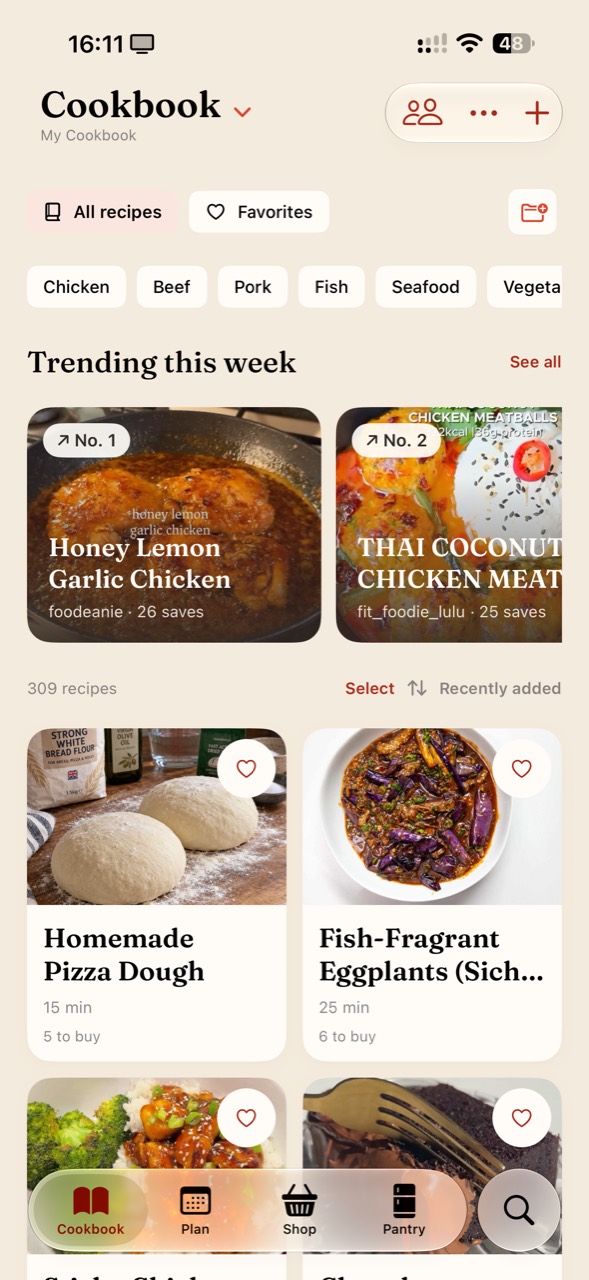
The cookbook screenshot in this guide shows the destination: named recipe cards, an All recipes view and Favorites. It shows the current iPhone beta, rather than the Android import controls described above.
Can Zuppi import every social recipe?
No. Access restrictions, missing text and the contents of the source affect the result. Text, screenshot and manual-entry options give you another route, but every imported recipe still needs a review.
Zuppi is in testing. Android alpha access is open; availability, labels and import limits can change between builds. See the current availability information before signing up.
Have a question, or an idea that would make this guide more useful in your kitchen? Get in touch. We’d love to hear from you.